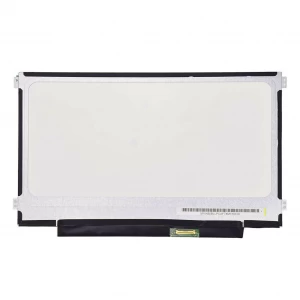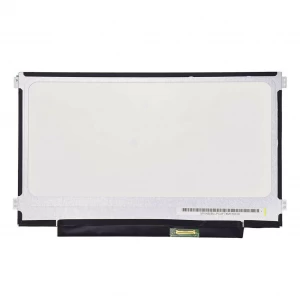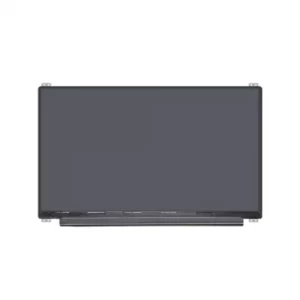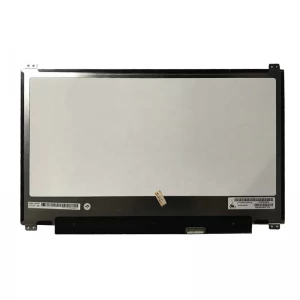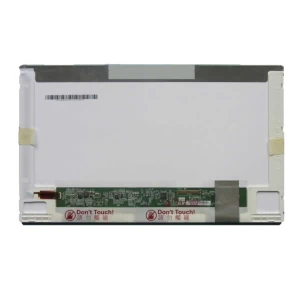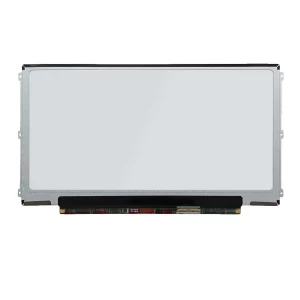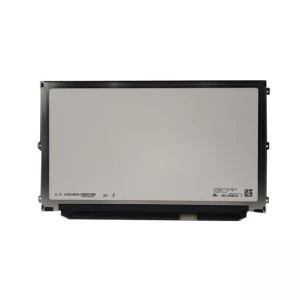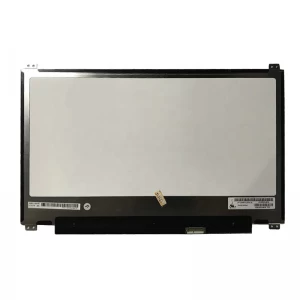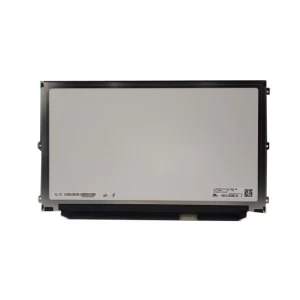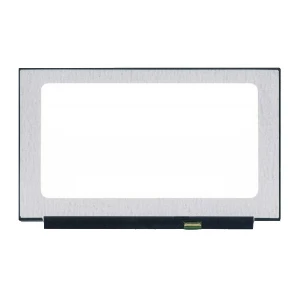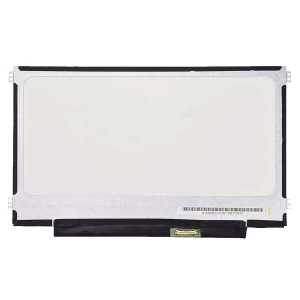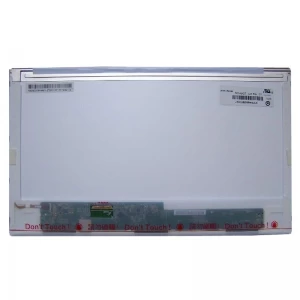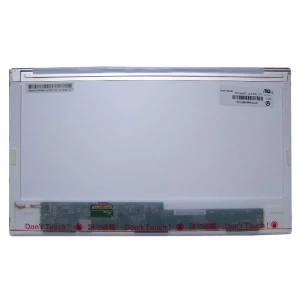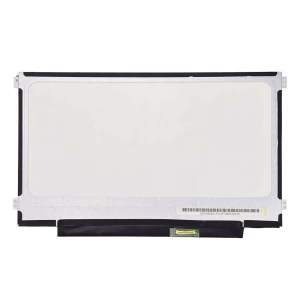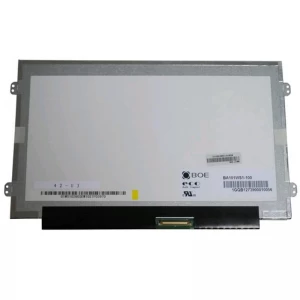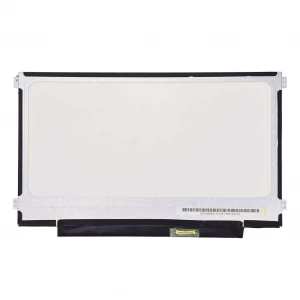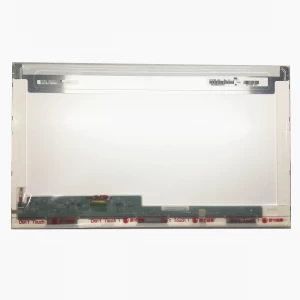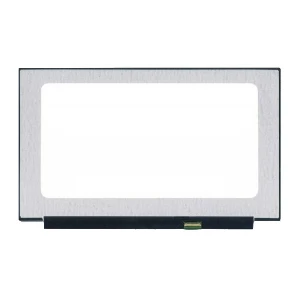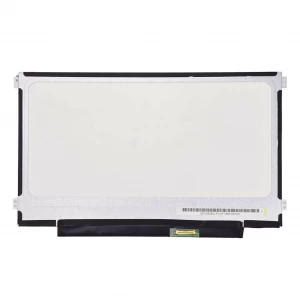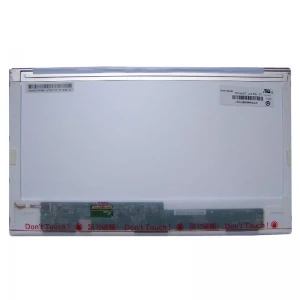
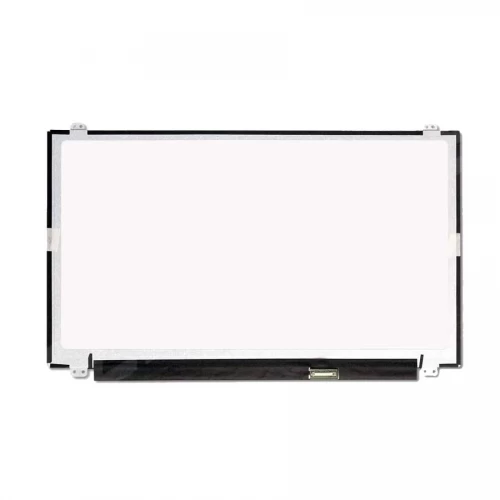
13.3 Inch LED Ultra 30 Pin FHD (1920x1080) (Left Connector) Matt/Glossy Notebook Display

N.B. Image may differ with actual product's layout, color, size & dimension. No claim will be accepted for image mismatch.

13.3 Inch LED Ultra 30 Pin FHD (1920x1080) (Left Connector) Matt/Glossy Notebook Display

Product Id: 01.01.0096

Regular Price  12,500
Special Price  12,200

Quick Overview

13.3 Inch LED Ultra 30 Pin FHD (1920x1080) (Left Connector) Matt/Glossy Notebook Display
Model
13.3 Inch LED Ultra 30 Pin FHD
Brand
Q1B
Display Type
Ultra LED
Diagonal Screen Size
13.3 Inch
Resolution
1920 x 1080 Pixels FHD
Refresh Rate (Hz)
60 Hz
Screen Finish
Matt/Glossy Depend on Stock
Video Connector
30 Pin
Video Connector Position
Left
Product Condition
Brand New
Warranty
3 Months (90 Days)
Made in/ Assemble
China

Details

Model - 13.3 Inch LED Ultra 30 Pin FHD, Brand - Q1B, Display Type - LED Ultra, Resulation - 1920x1080 Pixels FHD, Aspect ratio - 16:9, Refresh Rate (Hz) - 60 Hz, Diagonal Screen Size - 13.3 inch, Video Connector - 30 Pin, Video Connector Position - Left, Product Condition - Brand New & Compatible, Warranty - 3 Months (90 Days), Made in/ Assemble - China

💻 Laptop Display Buying & Guide (Touch, Non-Touch & Panel Types)

Laptop displays come in many types and technologies. Choosing the right display is very important for clear visuals, smooth touch response, and long-term performance. Whether it is a replacement or upgrade, understanding display types helps you make the right decision.

🔍 Types of Laptop Displays

 1. Non-Touch Display

  • Standard laptop screen without touch support
  • Most common and affordable type
  • Used in general laptops (office, study, business)

 2. Touch Display

  • Supports finger touch input
  • Used in 2-in-1 convertible laptops and premium models
  • Allows screen interaction like a tablet

 3. On-Cell Touch Display

  • Touch layer is built inside the display panel
  • Slimmer design compared to traditional touch screens
  • Better touch response and clearer display

 4. Full Assembly Display

  • Complete unit includes panel + touch + frame + hinge brackets (varies by model)
  • Easy replacement, less risk during installation
  • Mostly used in modern thin laptops

🧪 Laptop Display Panel Types (Simplified Guide)

Laptop displays mainly come in different panel technologies, each offering a different visual experience. Choosing the right panel depends on your usage like office work, design, gaming, or entertainment.

  • IPS (In-Plane Switching):
    Best for wide viewing angles and accurate colors. Common in most mid to high-range laptops, ideal for office work, design, and everyday use.
  • VA (Vertical Alignment):
    Offers better contrast and deeper blacks compared to IPS. Good for watching movies and general usage, but response time is slightly slower.
  • OLED / AMOLED:
    Premium display technology where each pixel lights individually. Provides perfect blacks, very high contrast, and vibrant colors. AMOLED is an advanced version with even brighter and more vivid visuals, mostly used in high-end laptops.

📏 Common Laptop Resolutions

  • HD (1366 × 768): Basic entry-level laptops
  • Full HD (1920 × 1080): Most common and recommended
  • 2K (2560 × 1440): Sharper display for professionals
  • 4K (3840 × 2160): Ultra high resolution for design & editing

🛒 What to check before buying a laptop display

  • Exact Model Match: Display must match your laptop model number
  • Size: Common sizes are 13.3”, 14”, 15.6”, 17.3”
  • Connector Type: Check pin type (30-pin / 40-pin, eDP, etc.)
  • Resolution Compatibility: Match original resolution for best result
  • Touch or Non-Touch: Make sure your laptop supports it
  • Frame Type: With bezel / without bezel / full assembly
  • Panel Type: IPS, VA, OLED depending on need and budget

⚠️ Why choosing the correct display is important

A wrong display may not fit, may not work properly, or may cause brightness, touch, or compatibility issues. Incorrect panels can also damage motherboard display output.
🧼 Laptop Display Care Tips

  • Clean screen with microfiber cloth only
  • Avoid pressing hard on the screen
  • Don’t close laptop with objects on keyboard
  • Keep away from direct sunlight and heat
  • Avoid water or chemical cleaners
  • Use a screen protector for touch displays

💡 Extra Tips

  • Flickering or lines on screen may not always mean panel damage it can be cable or GPU issue
  • Always test display before full installation if possible
  • For touch displays, check digitizer compatibility carefully
  • Full assembly displays reduce installation risk and are safer for replacements

Your review

Your Question