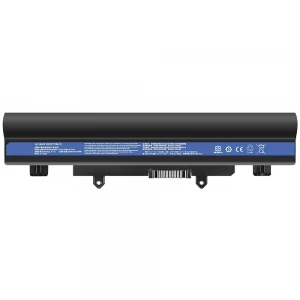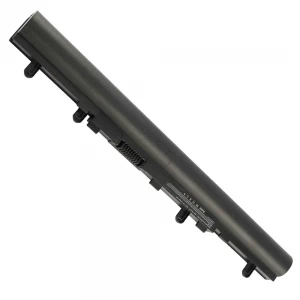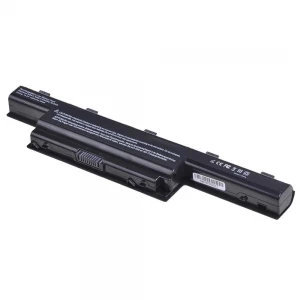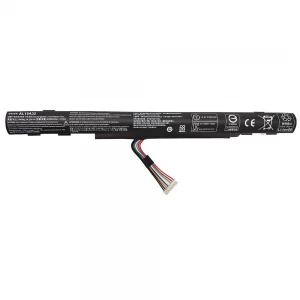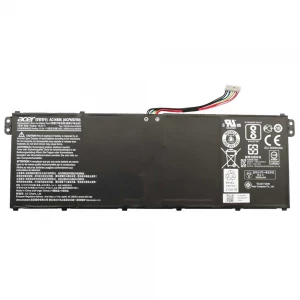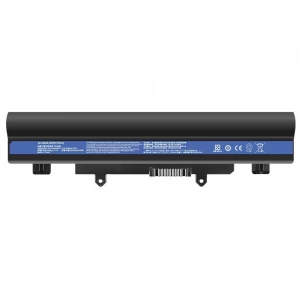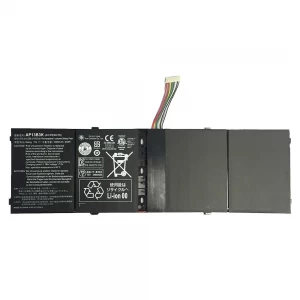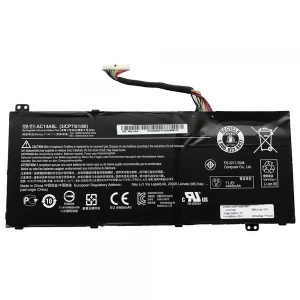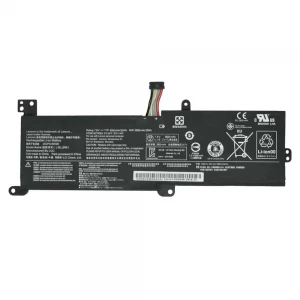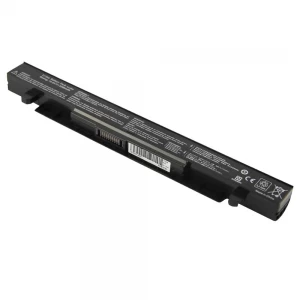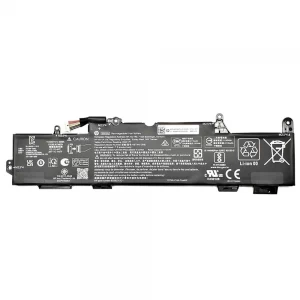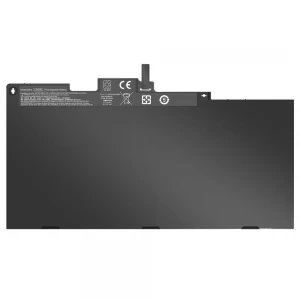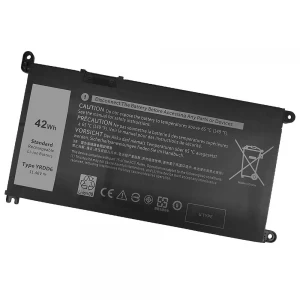
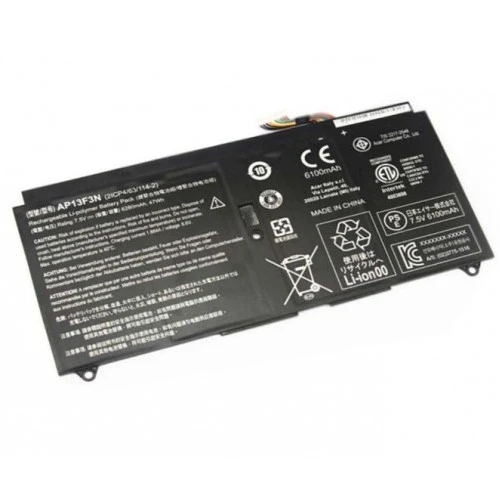
Acer Aspire S7-392 Ultrabook Series-AP13F3N Original Notebook Battery

N.B. Image may differ with actual product's layout, color, size & dimension. No claim will be accepted for image mismatch.

Acer Aspire S7-392 Ultrabook Series-AP13F3N Original Notebook Battery

Product Id: 02.04.0042

Regular Price  8,500
Special Price  8,200

Quick Overview

Acer Aspire S7-392 Ultrabook Series-AP13F3N Original Notebook Battery
Brand
Acer
Model
Acer Aspire S7-392
Battery Type
Lithium Polymer
Cells
4 Cells
Battery Capacity
6280mAh
Product Part No
Acer Aspire S7-392
Voltage
7.5V
Color
Black
Compatible With
AP13F3N Battery For Acer Aspire S7-392 Ultrabook Series 2ICP4/63/114-2 For Aspire S7-391-6822,For Aspire S7-392,For Aspire S7-392-54208G12TWS,For Aspire S7-392-54208G25TWS, For Aspire S7-392-6411,For Aspire S7-392-6832,For Aspire S7-392-9460,For Aspire S7-392-9890
Product Condition
Brand New
Warranty
6 Months (180 Days)
Made in/ Assemble
China

Details

Acer Aspire S7-392 Ultrabook Series-AP13F3N Original Notebook Battery

🔋 Laptop Battery Buying Guide

Laptop batteries don’t last forever. Over time, they lose power and performance. Knowing when to replace your battery and how to choose the right one can help you avoid problems and keep your laptop running smoothly.

🔍 When should you replace your laptop battery?

  • Battery drains very fast
  • Takes too long to fully charge
  • Laptop shuts down suddenly without charger
  • Battery gets swollen or overheated
  • Shows “Plugged in, not charging” issue

🛒 What to check before buying a new battery

  • Model Compatibility: Make sure the battery matches your exact laptop model
  • Voltage & Capacity: Choose the same Voltage (V) and Capacity (mAh/Wh) as the original battery
  • Quality: Go for OEM or high-quality batteries for better performance

⚠️ Why choosing the right battery is important

A low-quality battery can damage your laptop and may cause safety risks.
🔋 Laptop Battery Care Tips for Long-Lasting Performance

  • First Charge Properly: Fully charge the new battery before first use
  • Avoid Full Drain: Try not to let the battery drop to 0% frequently
  • Keep Charge Between 20%–80%: This helps increase battery lifespan
  • Use Original Charger: Always use the recommended charger for safe charging
  • Avoid Overheating: Keep your laptop in a cool and ventilated place
  • Unplug After Full Charge (if needed): Don’t keep it plugged in all the time
  • Regular Use: Use the battery regularly to keep it active

💡 Extra Tips

  • If your laptop heats up while charging, get it checked
  • Keep an eye on battery health regularly

Your review

Your Question