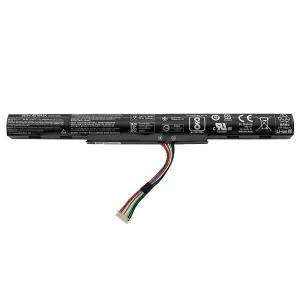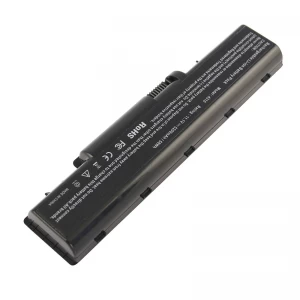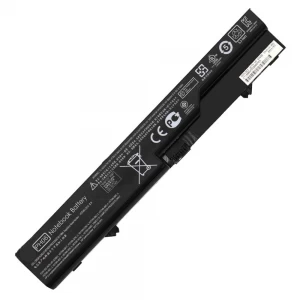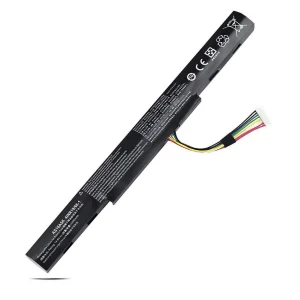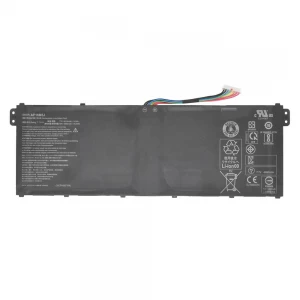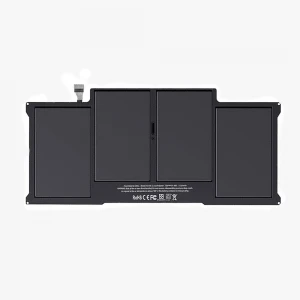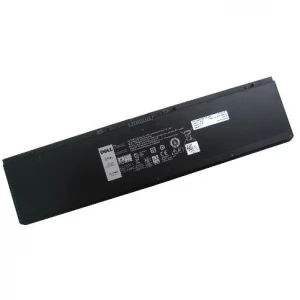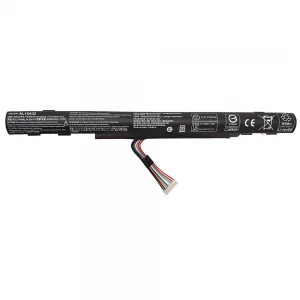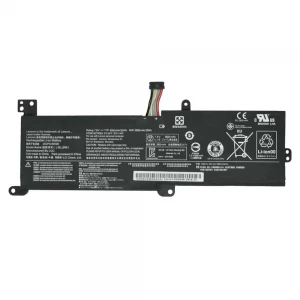
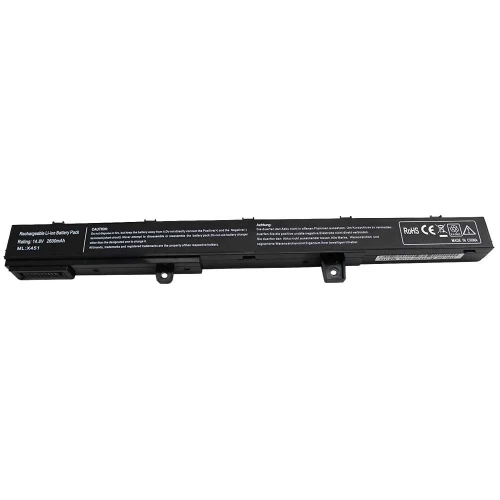
ASUS X451CA Notebook Battery

N.B. Image may differ with actual product's layout, color, size & dimension. No claim will be accepted for image mismatch.

ASUS X451CA Notebook Battery

Product Id: 02.05.0022

Regular Price  3,000
Special Price  2,700

Quick Overview

ASUS X451CA Notebook Battery
Brand
ASUS
Model
ASUS X451CA
Battery Type
Lithium-Ion
Cells
4 Cells
Battery Capacity
2600mAh
Product Part No
X45LI9C,A31N1319,A41N1308,YU12008-13007D, 0B110-00250100M-A1A1A-327-03D3, A31LJ91, A41N1308, CKSE14122, YU12125-13002.
Voltage
14.4V
Color
Black
Compatible With
Asus A41 D550 X451 X451C X451CA Series X45li9c X551 X551C X551CA Series X551CA-0051A2117U X551CA-DH21 X551CA-SX024H X551CA-SX029H
Product Condition
Brand New
Warranty
6 Months (180 Days)
Made in/ Assemble
China

Details

ASUS X451CA Notebook Battery

🔋 Laptop Battery Buying Guide

Laptop batteries don’t last forever. Over time, they lose power and performance. Knowing when to replace your battery and how to choose the right one can help you avoid problems and keep your laptop running smoothly.

🔍 When should you replace your laptop battery?

  • Battery drains very fast
  • Takes too long to fully charge
  • Laptop shuts down suddenly without charger
  • Battery gets swollen or overheated
  • Shows “Plugged in, not charging” issue

🛒 What to check before buying a new battery

  • Model Compatibility: Make sure the battery matches your exact laptop model
  • Voltage & Capacity: Choose the same Voltage (V) and Capacity (mAh/Wh) as the original battery
  • Quality: Go for OEM or high-quality batteries for better performance

⚠️ Why choosing the right battery is important

A low-quality battery can damage your laptop and may cause safety risks.

🔋 Laptop Battery Care Tips for Long-Lasting Performance

  • First Charge Properly: Fully charge the new battery before first use
  • Avoid Full Drain: Try not to let the battery drop to 0% frequently
  • Keep Charge Between 20%–80%: This helps increase battery lifespan
  • Use Original Charger: Always use the recommended charger for safe charging
  • Avoid Overheating: Keep your laptop in a cool and ventilated place
  • Unplug After Full Charge (if needed): Don’t keep it plugged in all the time
  • Regular Use: Use the battery regularly to keep it active

💡 Extra Tips

  • If your laptop heats up while charging, get it checked
  • Keep an eye on battery health regularly

Your review

Your Question