

N.B. Image may differ with actual product's layout, color, size & dimension. No claim will be accepted for image mismatch.

Product Id: 44.0256.0001
Quick Overview
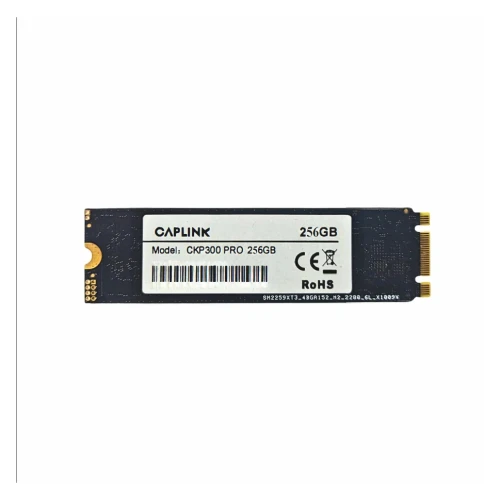
CAPLINK CKP300 PRO 256GB M.2 SATA SSD 2280 Solid State Drive
CAPLINK CKP300 PRO 256GB M.2 SATA SSD 2280 Solid State Drive
An SSD (Solid State Drive) plays an important role in your laptop or desktop's speed and overall performance. Upgrading to an SSD can help improve boot times, reduce loading delays, and make everyday computing smoother. Knowing which SSD to choose and what to check before buying can help you make the right decision.
Laptop or PC takes too long to boot
Applications and files load very slowly
System frequently freezes or becomes unresponsive
SSD health shows warnings or critical errors
Files become corrupted or the drive is not detected
Available storage space is no longer sufficient
Form Factor: Check whether your device supports a 2.5-inch SATA SSD or an M.2 SSD.
Interface Compatibility: Make sure your device supports SATA III, PCIe NVMe, or the specific interface required by the SSD.
Capacity: Choose the right storage capacity, such as 256GB, 512GB, 1TB, or higher, based on your needs.
Physical Compatibility: For M.2 SSDs, check the supported size, such as 2242 or 2280, and available slot space.
Read & Write Speed: Compare the SSD's advertised read and write speeds to find one suitable for your workload.
Quality & Warranty: Choose a reliable SSD brand with proper warranty support for better reliability and peace of mind.
An incompatible SSD may not work properly with your laptop or desktop. Choosing the correct interface, form factor, and capacity ensures proper installation and helps you get the expected storage performance.
Keep Free Storage Space: Avoid filling your SSD completely. Maintain some free space for smooth operation.
Enable TRIM: Make sure TRIM is enabled to help the SSD manage deleted data efficiently.
Keep Firmware Updated: Install manufacturer-recommended firmware updates when available.
Avoid Unnecessary Writes: Minimize unnecessary large file transfers and repeated write operations.
Maintain Proper Cooling: Ensure adequate airflow to prevent overheating, especially for high-performance NVMe SSDs.
Use a Reliable Power Supply: Protect your computer from unexpected power interruptions.
Monitor SSD Health: Regularly check drive health, temperature, and remaining lifespan using suitable monitoring software.
Always back up important files regularly.
Check SSD health if your system becomes unusually slow or starts showing errors.
Before replacing an SSD, make sure to back up your data or properly clone the old drive.
If your laptop does not detect a newly installed SSD, get its compatibility and installation checked by a professional.
Need help choosing the right SSD? Visit Ryans Care for professional assistance with SSD compatibility, installation, and storage solutions.
Ryans Care © 2026 All Rights Reserved. Designed by Ryans Care Ltd.
