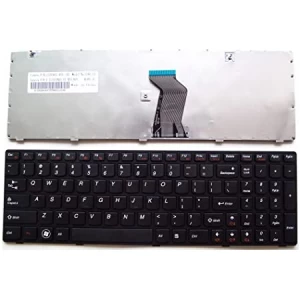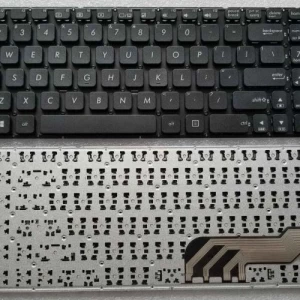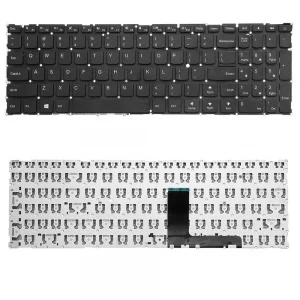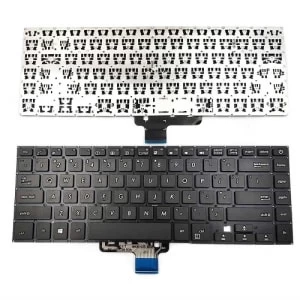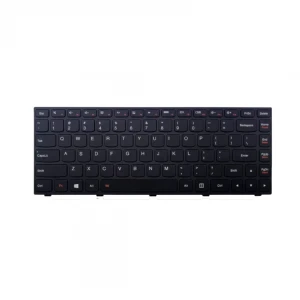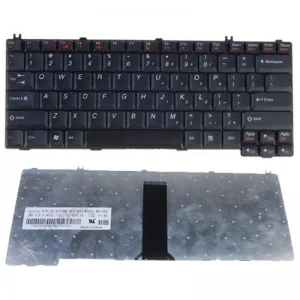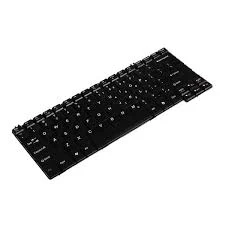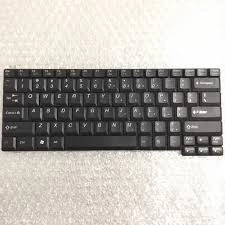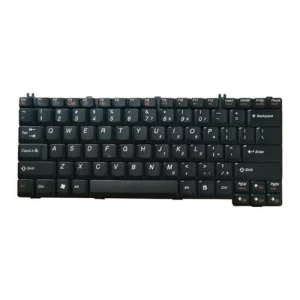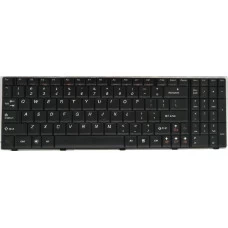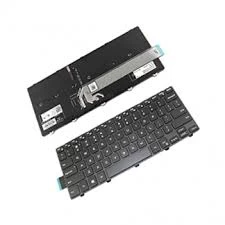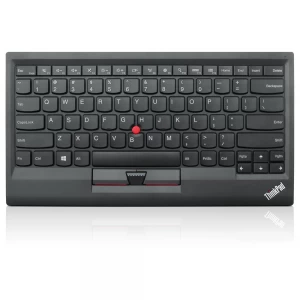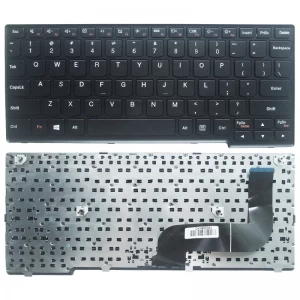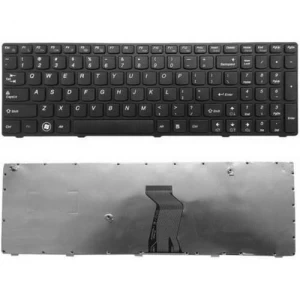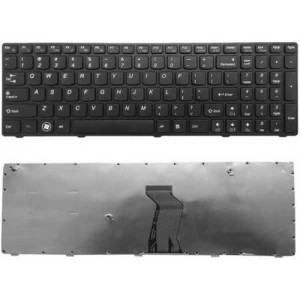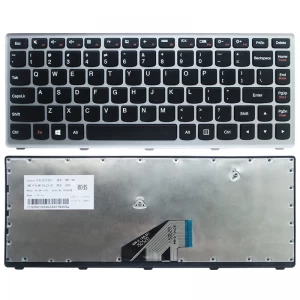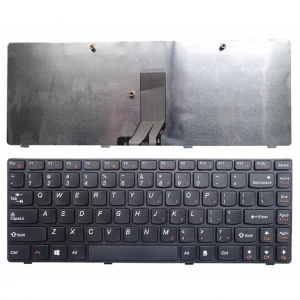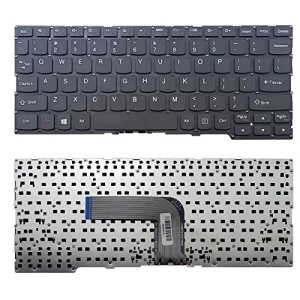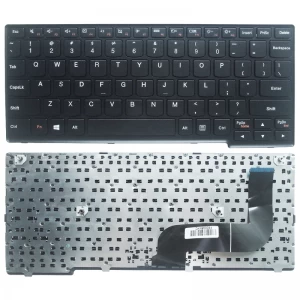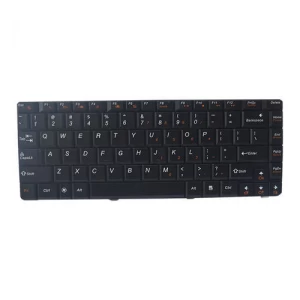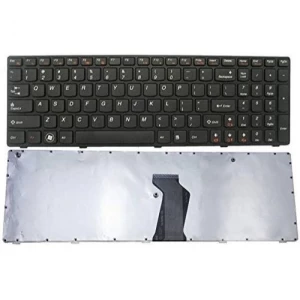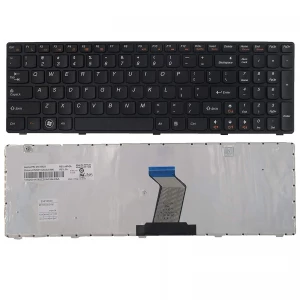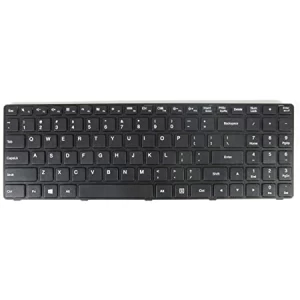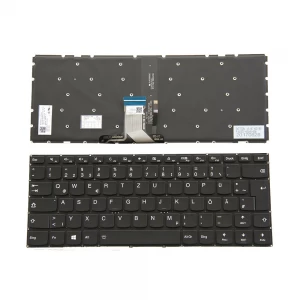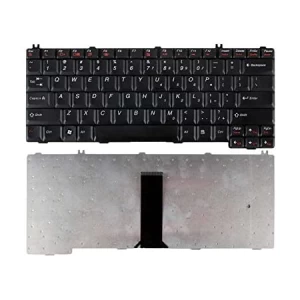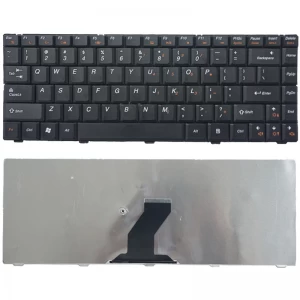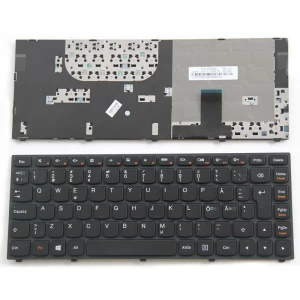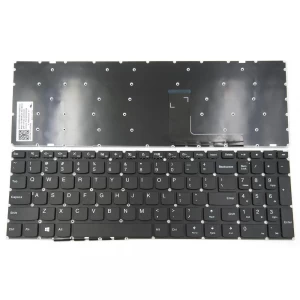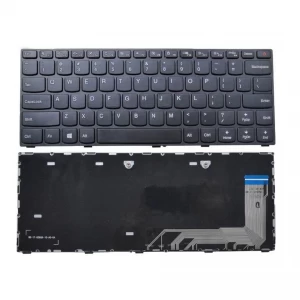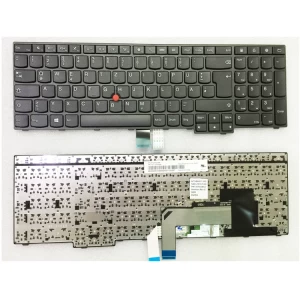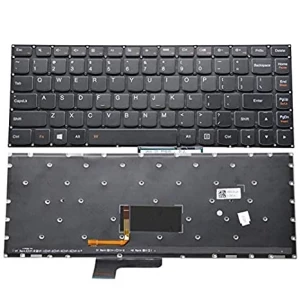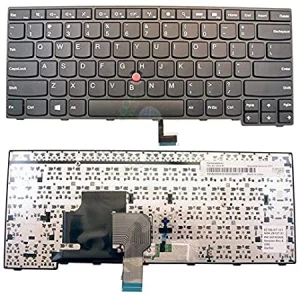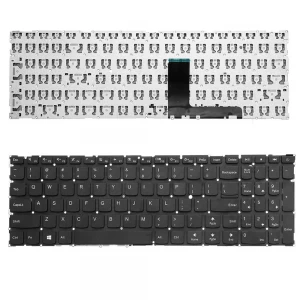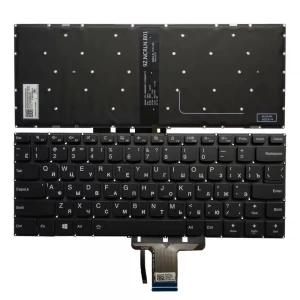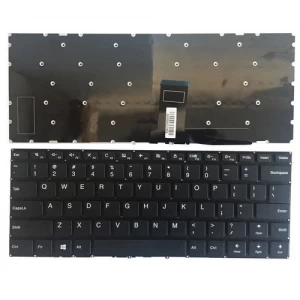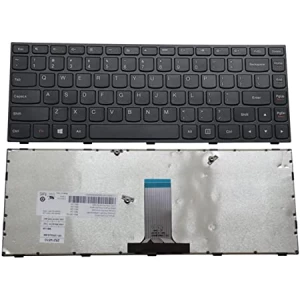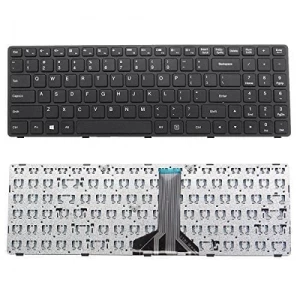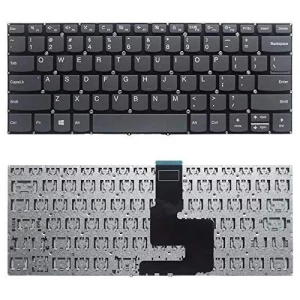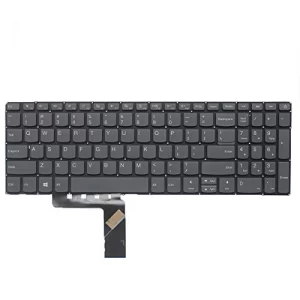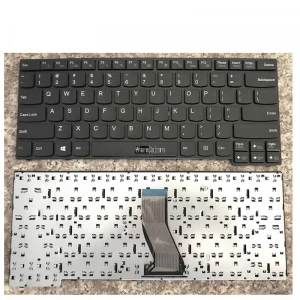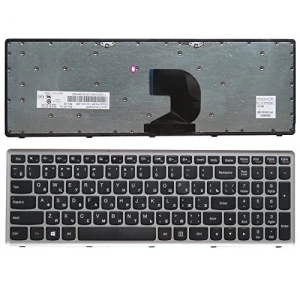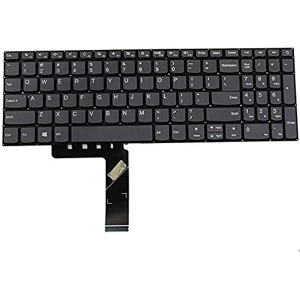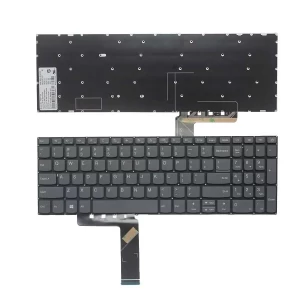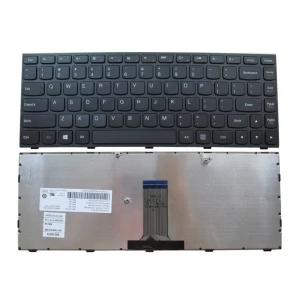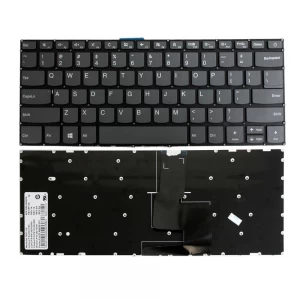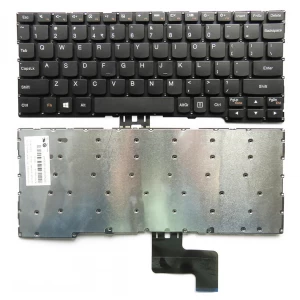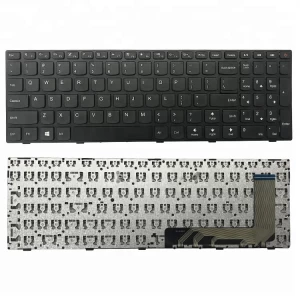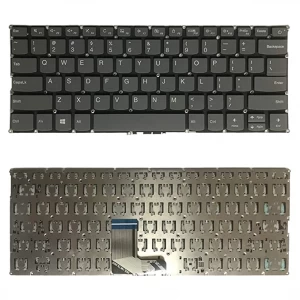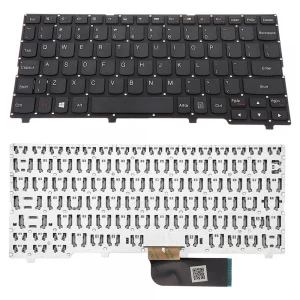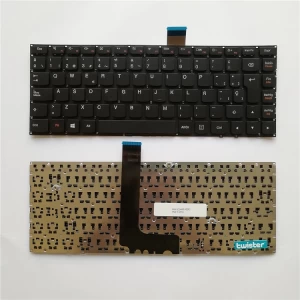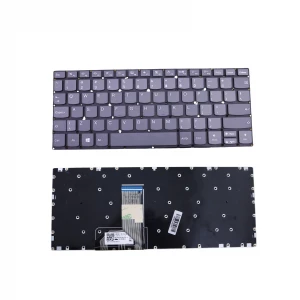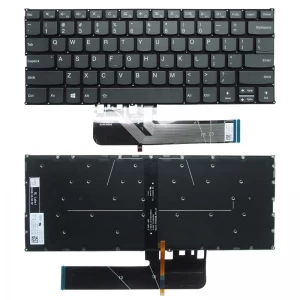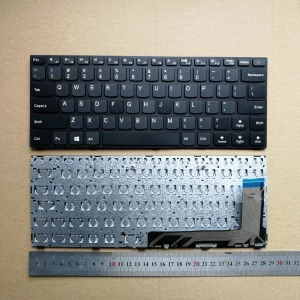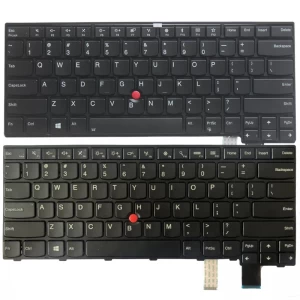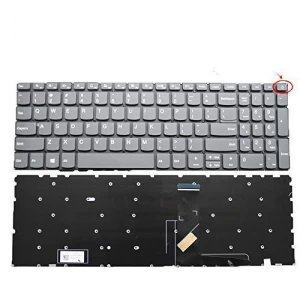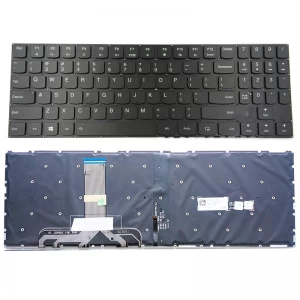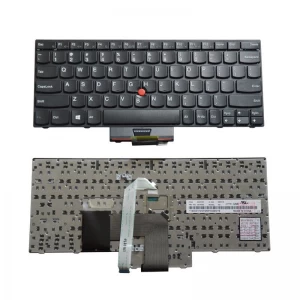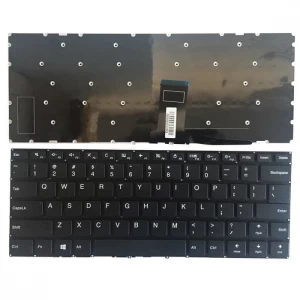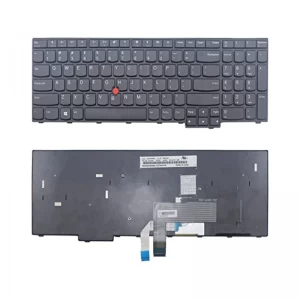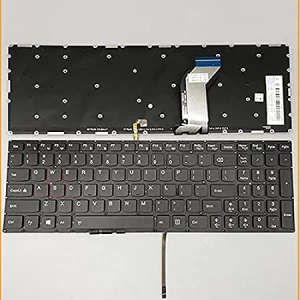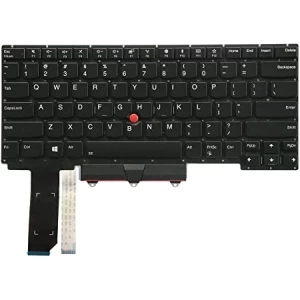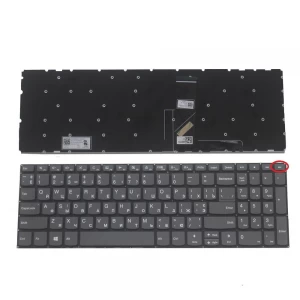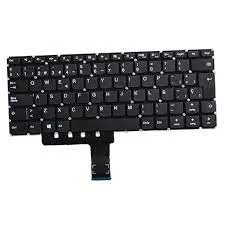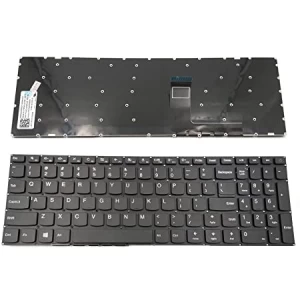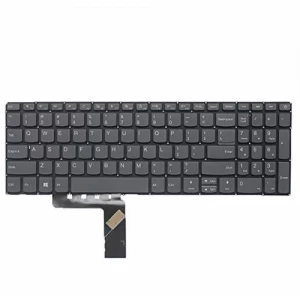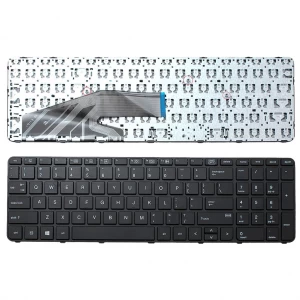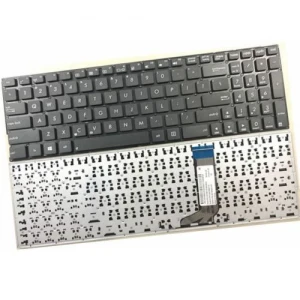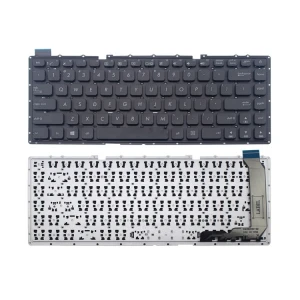
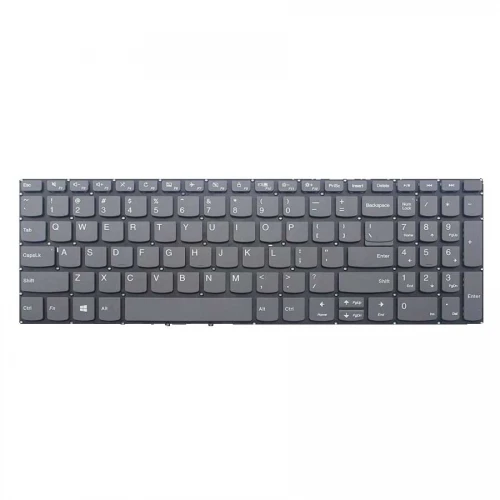
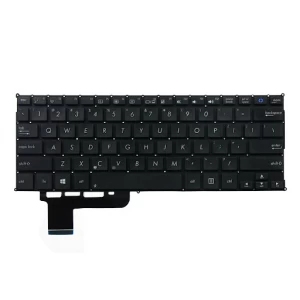
Lenovo 320-15 ISK Without Power Button Keyboard For Notebook

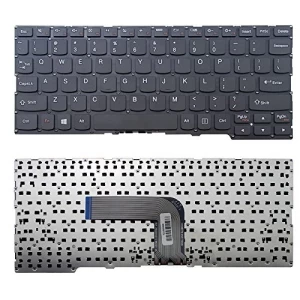
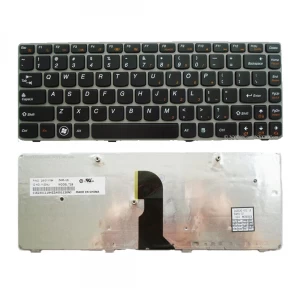
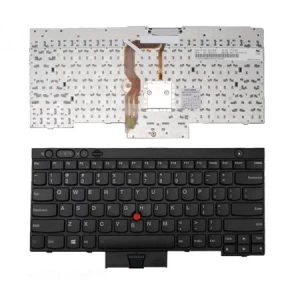
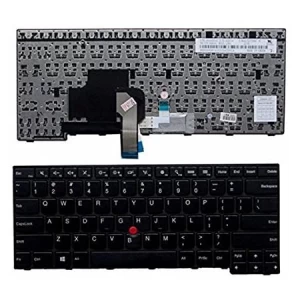
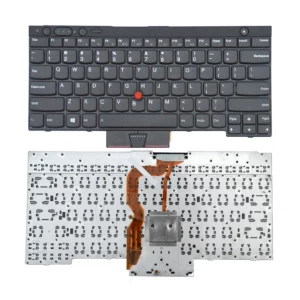
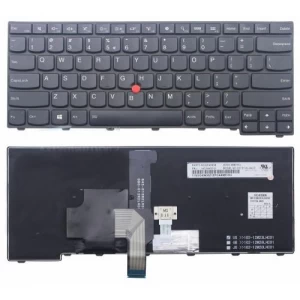
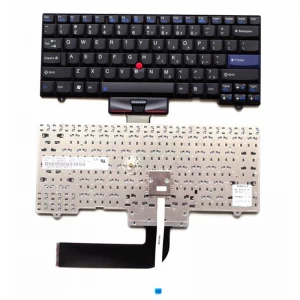
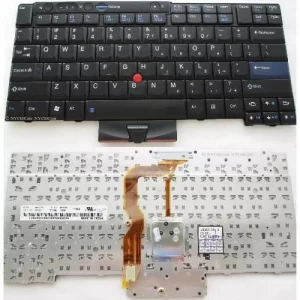
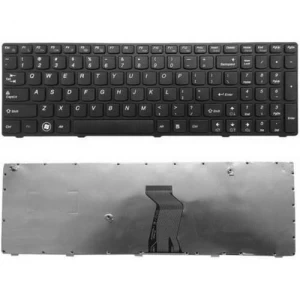
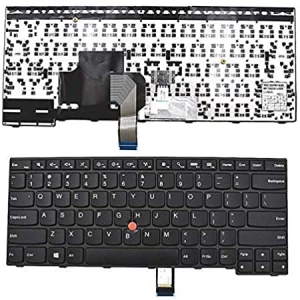
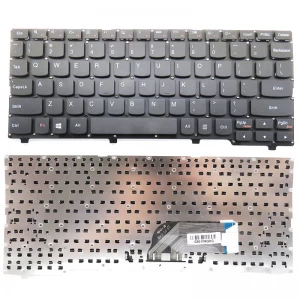
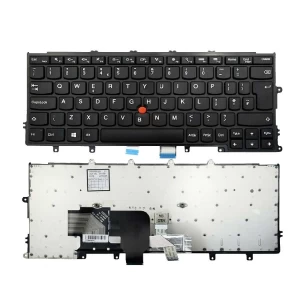
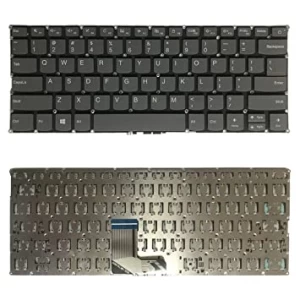
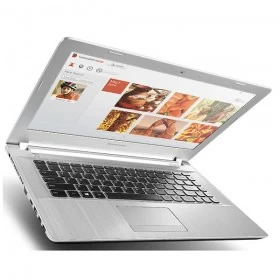
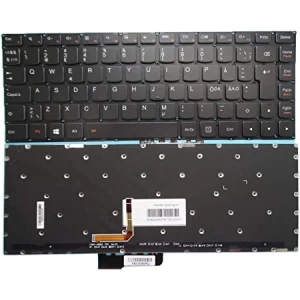
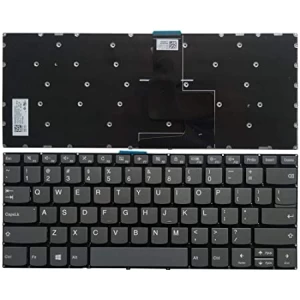
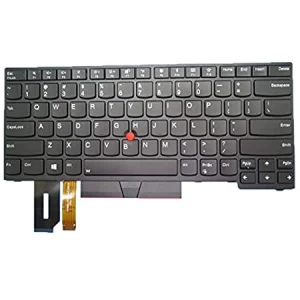
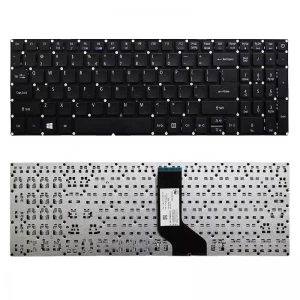
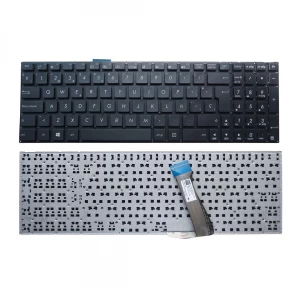
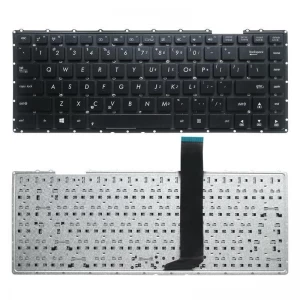
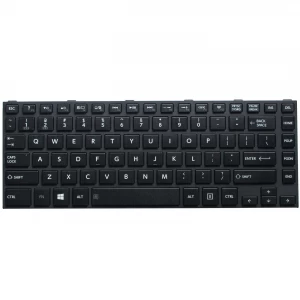
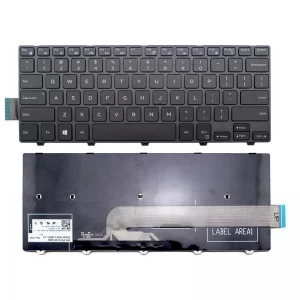
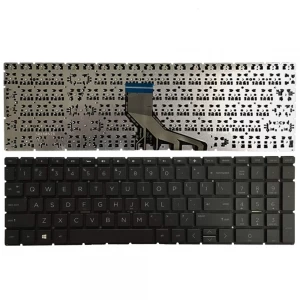
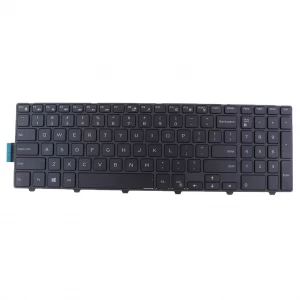
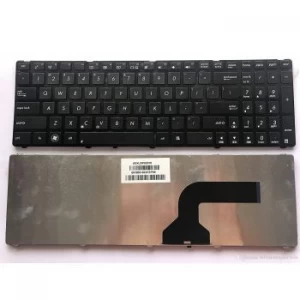
N.B. Image may differ with actual product's layout, color, size & dimension. No claim will be accepted for image mismatch.

Lenovo 320-15 ISK Without Power Button Keyboard For Notebook

Product Id: 03.09.0082

Regular Price  3,000
Special Price  2,700

Quick Overview

Lenovo 320-15 ISK Without Power Button Keyboard For Notebook
Brand
LENOVO
Model
Lenovo 320-15 ISK
Color
Black
Layout
US & UK Depend on Stock
Backlight
No
Size
Medium
Compatible With
Lenovo IdeaPad 320-15ABR 320-15IAP 320-15AST 320-15IKB 320-15ISK
Track Pointer
No
Power Switch
No
RGB
No
Product Condition
Brand New
Warranty
3 Months (90 Days)
Made in/ Assemble
China

Details

Lenovo 320-15 ISK Without Power Button Keyboard For Notebook

⌨️ Laptop Keyboard Buying & Care Guide

A laptop keyboard is one of the most used parts of your device. Over time, it can develop issues like unresponsive keys, typing errors, or physical damage. Knowing when to replace it and how to take care of it helps keep your laptop working smoothly.

🔍 When should you replace your laptop keyboard?

  • Some keys are not working or missing response
  • Keys are typing wrong letters or repeating automatically
  • Liquid spill damage (water/tea/coffee)
  • Keyboard is physically broken or loose
  • Backlight is not working (if your model has it)
  • Entire keyboard stops working

🛒 What to check before buying a new keyboard

  • Model Compatibility: Make sure it matches your exact laptop model
  • Layout Type: Check if it is US, UK, or regional layout
  • With/Without Backlight: Confirm if your laptop supports keyboard backlight
  • Quality: Choose OEM or high-quality replacement keyboards
  • Installation Type: Some keyboards are built-in with palmrest, some are separate

⚠️ Why choosing the right keyboard is important

A wrong keyboard may not fit properly or may not work at all. Low-quality keyboards can also have poor typing experience and shorter lifespan.
🧼 Laptop Keyboard Care Tips for Long Life

  • Avoid eating or drinking near your laptop
  • Clean keyboard regularly using a soft brush or air blower
  • Don’t press keys too hard while typing
  • Use a keyboard cover to protect from dust and spills
  • Immediately clean any liquid spill to avoid damage
  • Keep your laptop in a clean and dust-free environment

💡 Extra Tips

  • If water is spilled, turn off the laptop immediately and get it checked
  • Regular maintenance can extend keyboard life significantly

Your review

Your Question